
Ways to patch a package
This document gives an overview over different techniques to change the behavior of an existing package.
Introduction
Section titled “Introduction”It is sometimes necessary to modify a package in a project without the ability to trigger a release containing the desired changes.
Some possible reasons are:
- The package contains a bug and a release that includes the fix is not (yet) available
- An intended behavior change will not be accepted upstream but is required for the application to work
- The package is unmaintained
Before patching a package, consider working with the upstream maintainers and send them a feature request or ask them to include your intended behavior change as a contribution. Patching a package increases your maintenance burden, since you’re often modifying internal behavior:
- Updates may be more costly (or even impossible) because your changes need to be merged with the updated package
- Your changes may break randomly because the assumptions you made about the package’s internals are no longer true
Even if you patched a package, it is good practice (and in your own interest) to attempt to contribute your changes anyway or at least to open an issue describing the bug or needed feature. A future version of the package that includes your changes would mean that you don’t need to maintain your own version anymore.
With those risks in mind, choose one of the following alternatives, depending on your requirements. When in doubt, choose the less powerful alternative, since it often comes with a smaller maintenance burden.
Using methods of the trails framework
Section titled “Using methods of the trails framework”If the package you attempt to modify is a trails package, you have some builtin methods to achieve that.
Properties
Section titled “Properties”Package properties can be overwritten from an application. For example:
const Element = createCustomElement({ component: AppUI, appMetadata, config: { properties: { // Overrides the `someProperty` property in "some-package-name"` "some-package-name": { someProperty: "new-value" } } }});For more details, see
I18n messages
Section titled “I18n messages”Just like properties, an app can also overwrite the i18n messages used by other packages. For example:
messages: # ...
overrides: # Overrides `message.id` in "some-package-name" some-package-name: message.id: "Replacement message"For more details, see the I18N format reference.
Services
Section titled “Services”Services cannot be replaced directly at this time. However, an app can forcefully disable services defined by another package. Since references between services are not based on classes, but based on interface names, you can simply substitute your own implementation.
The following example replaces the NotificationService (from @open-pioneer/notifier), which usually displays Chakra toasts, with an implementation that simply logs the messages.
To disable the service:
import { defineBuildConfig } from "@open-pioneer/build-support";
export default defineBuildConfig({ i18n: ["en"], ui: { references: ["notifier.NotificationService"] }, overrides: { // Package name "@open-pioneer/notifier": { services: { // Internal service name within the package. // Can be learned by inspecting the package's source code (or its compiled package.json). NotificationServiceImpl: { // Completely removes the service from the application. enabled: false } } } }});You can then implement a new version of the NotificationService, either in your app or in another package. To do this, it is necessary to implement exactly the same interface as the old service; the name of the service can be chosen freely.
Note that this replaces the NotificationService in the entire application, so all packages in that application
will observe your new implementation.
It is therefore important to provide an implementation that (roughly) conforms to the original API, to avoid runtime errors.
For this example, we can simply add a new service to our application:
import { defineBuildConfig } from "@open-pioneer/build-support";
export default defineBuildConfig({ services: { CustomNotificationService: { provides: "notifier.NotificationService" } } // ...});And here is the implementation (based on @open-pioneer/notifier@0.3.4).
export class CustomNotificationService { // This method will be called whenever anyone in the application uses the `NotificationService` // to emit a notification. notify(options: unknown) { console.log("Notification", options); }
closeAll() {}
// This method is an internal API used by the <Notifier /> component, // used to register a handler (listener) for incoming notifications. // If this method wouldn't exist, we would get a runtime error in the Notifier component. registerHandler() { return { destroy() {} }; }}Besides implementing a complete new service, it is also possible to reuse the original service in your new code. For example, the original service can be wrapped or extended to adjust its functionality. The original implementation can be retrieved by importing it from the patched package’s service entry point.
See also the Service reference for more details.
Copying/forking a package
Section titled “Copying/forking a package”One simple way to modify an existing package is to copy it into your own source tree. This can work well in some circumstances, for example if the package provides simple functions or classes (or React components).
You can simply use the copied package instead of the original one.
Note that you can use either the package’s source code or the published package code from node_modules.
In both cases, make sure to conform to the package’s license.
Keep in mind that you may have to modify your build configuration (Vite, Linter, TypeScript, etc.) to work with the package’s code (or to ignore it).
This approach stops working when other packages also use that package and you want to modify them as well.
For example, you can copy and modify the @open-pioneer/runtime all you want; other packages will still use the original version.
You need to use the package manager to achieve that (see below).
Using the package manager
Section titled “Using the package manager”You can use pnpm to make complex changes to your packages. pnpm’s capabilities include:
- A workflow for simple patches to another package (by applying a patch/diff file). This is a great alternative if you only need to change a few lines of code.
- Changing a package’s metadata, for example the
dependenciesorpeerDependencies - Overriding packages and their dependencies. You can change packages at will in your application’s entire dependency graph.
All of those features are described in pnpm’s Documentation (opens in a new tab). This section contains a few practical examples.
Using pnpm patch
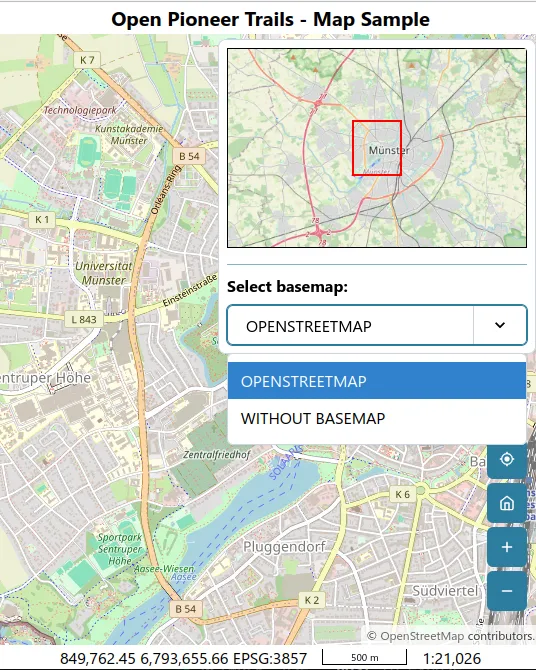
Section titled “Using pnpm patch”In this example, we’re going to modify the BasemapSwitcher’s implementation to always render layer titles in upper case.
At the time of this writing, the current version of @open-pioneer/basemap-switcher is 0.4.2.
To create a patch, simply call pnpm patch (opens in a new tab) from your terminal:
$ pnpm patch @open-pioneer/basemap-switcherYou can now edit the following folder: /tmp/f3661f760f6e544d6a19972fa9ed9132
Once you're done with your changes, run "pnpm patch-commit '/tmp/f3661f760f6e544d6a19972fa9ed9132'"pnpm has created a temporary directory that contains the contents of @open-pioneer/basemap-switcher.
We can simply edit that directory, pnpm will track our changes.
In our case, we locate the label computation in the useBasemapItem hook in BasemapSwitcher.js:
function useBasemapItem(layer) { const intl = useIntl(); const notAvailableLabel = intl.formatMessage({ id: "layerNotAvailable" }); const label = useTitle(layer).toUpperCase(); // Patch: all labels in uppercase // ...}We change the label constant to always be uppercase and save the file.
Finally, we call pnpm patch-commit:
$ pnpm patch-commit '/tmp/f3661f760f6e544d6a19972fa9ed9132'The result can be observed in the map-sample application:
How does it work?
Section titled “How does it work?”pnpm computes the changes made by your edits and saves them as a patch:
# patches/@open-pioneer__basemap-switcher@0.4.2.patchdiff --git a/BasemapSwitcher.js b/BasemapSwitcher.jsindex e1b45ef281a5a670a9137b85b0f0ea81c916776f..869e78329fcbf863199669508f1c7ab23a822dd8 100644--- a/BasemapSwitcher.js+++ b/BasemapSwitcher.js@@ -115,7 +115,7 @@ function BasemapSelectValue(props) { function useBasemapItem(layer) { const intl = useIntl(); const notAvailableLabel = intl.formatMessage({ id: "layerNotAvailable" });- const label = useTitle(layer);+ const label = useTitle(layer).toUpperCase(); // Patch: all labels in uppercase const isAvailable = useLoadState(layer) !== "error"; return { isAvailable,It also creates a new entry in your pnpm-workspace.yaml:
patchedDependencies: "@open-pioneer/basemap-switcher@0.4.2": "patches/@open-pioneer__basemap-switcher@0.4.2.patch"Both changes should be committed to your project.
pnpm install will automatically apply the patch to the package whenever possible.
If that fails, for example if the package is updated and has diverged, pnpm will report an error.
You can then either re-implement the patch or drop it altogether.
Note that you can also “augment” your patch if you need to; simply re-execute pnpm patch for that package.
You can also use pnpm patch to change arbitrary files in a package (not only source code), for example you can change a package’s metadata by editing the package.json file.
Overriding a dependency
Section titled “Overriding a dependency”pnpm allows you to override dependencies (opens in a new tab) using the overrides object in your pnpm-workspace.yaml.
The following example overrides all instances of a package with a different version of that package.
This can be used to force updates if the package contains a security vulnerability.
It can also be used to force a dependency to use the newer version, even if its original package.json only supports an older version.
overrides: "semver@<7.5.2": ">=7.5.2"The following example only overrides a package version when used from another package.
In this case, the chakra-react-select package used an old version of react-select; the new version expression made it pick up an update:
overrides: "chakra-react-select>react-select": "^5.8.0"This feature can also be used to change a package altogether.
The following example replaces all usages of the package @mapbox/mapbox-gl-style-spec with the (compatible) package @maplibre/maplibre-gl-style-spec:
overrides: "@mapbox/mapbox-gl-style-spec": "npm:@maplibre/maplibre-gl-style-spec@^20.1.1"Note that you can also use other protocols than npm, for example file or git.
Finally, you can also substitute a local package:
overrides: "some-package-name": "workspace:your-local-package@*"Some versions of pnpm may report dependency issues when overriding a local package, for example:
✕ unmet peer some-package-name@your-local-package@*: found x.y.zIn that case, you can also relax the peer dependency rules (opens in a new tab) by overriding them:
overrides: "some-package-name": "workspace:your-local-package@*"
peerDependencyRules: allowedVersions: # '*' is the most permissive, which is fine in this case # since we've completely replaced the package with our version anyway. "some-package-name": "*"Walkthrough: forking a package and building it yourself
Section titled “Walkthrough: forking a package and building it yourself”In this walkthrough, we will fork an existing package, extend it and build it ourselves to test the changes. This can be helpful if you intend to contribute a new feature or fix a bug to some upstream package, but need to use the changed version in your application immediately.
Fist, fork the source repository (or create a branch in the original repository) and make your changes.
In this example, we will make a very simple change the @open-pioneer/basemap-switcher package (v0.11.0 (opens in a new tab)).
$ git checkout -b feature/my-basemap-switcher-changesSwitched to a new branch 'feature/my-basemap-switcher-changes'We update the BasemapItem component to render all labels in upper case:
function BasemapItem(props: { item: SelectOption }) { const intl = useIntl(); const notAvailableLabel = intl.formatMessage({ id: "layerNotAvailable" }); const item = props.item; return ( <Select.Item item={item} key={item.value} justifyContent="flex-start" // Override pointer-events: none rule for disabled items; we want to show the tooltip on hover pointerEvents="auto" className="basemap-switcher-option" > {item.label} {item.label.toUpperCase()}Then (not shown), you can commit your changes and initiate a pull request to the source repository.
To try the changed package in your own application, you can build the package yourself.
Trails packages typically use a build script in their package.json file.
The script builds the package and places the output into the dist directory:
$ cd src/packages/basemap-switcher$ pnpm buildNext, we can simulate “publishing” the package by running pnpm pack:
$ pnpm pack.../path/to/project/trails-openlayers-base-packages/src/packages/basemap-switcher/dist/open-pioneer-basemap-switcher-0.11.0.tgzpnpm pack creates a tarball that contains the build package.
This is the format that you would download via your package manager when installing a package from npmjs.com.
Next, you can copy the tar file to your project (for example, into the patches directory) and override
the existing basemap switcher package:
overrides: "@open-pioneer/basemap-switcher": "file:./patches/open-pioneer-basemap-switcher-0.11.0.tgz"Run pnpm install to apply the changes, then run pnpm dev.
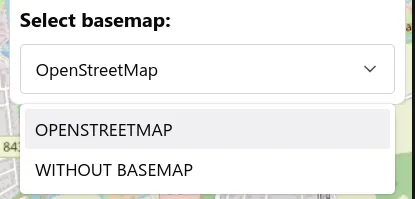
The application will now use the modified version of the package:
Notes:
Section titled “Notes:”- The override replaces the package in your entire application. This works best if the modified version of the package is close to (or compatible with) the original version.
- You can commit the tarball to your git repository.
Other developers will automatically apply the override when they run
pnpm install. - PNPM will currently not detect changes (file modifications) in the tarball itself. If you need to update it, simply change the file name as well.
- This process can also be used for multiple packages:
However, this may become too cumbersome in the long run. If you need custom development versions of trails packages, you can also contact the maintenance team to publish a custom development snapshot.
Terminal window # Runs pack on every package and places the output into the specified directory.$ pnpm recursive pack --filter='@open-pioneer/*' --pack-destination=/path/to/output/directory
Walkthrough: replacing @open-pioneer/runtime
Section titled “Walkthrough: replacing @open-pioneer/runtime”In this short walkthrough, we will replace the package @open-pioneer/runtime with our own custom version.
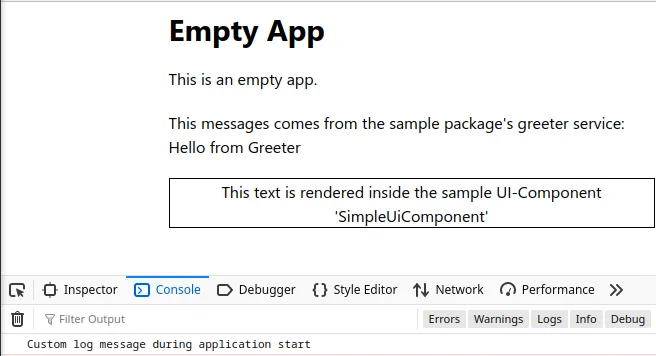
We will add a simple log message to the application start to demonstrate the replacement.
To get started, copy the contents of @open-pioneer/runtime into a local package in your source directory, e.g. to src/packages/custom-runtime.
Either the source code version (from here (opens in a new tab)) or the built sources (from node_modules) will work.
To indicate that the package has been modified, we simply change the version a bit:
{ "name": "@open-pioneer/runtime", "version": "2.1.5-custom.0" // ...}Now we make our change: we are basing this walkthrough on version 2.1.5, so we have to edit CustomElement.js:
// ...class PioneerApplication extends HTMLElement { // ... connectedCallback() { LOG.debug("Launching application"); console.log("Custom log message during application start"); // Our change // ... }}Next, we override the package @open-pioneer/runtime with our local version for all packages in our applications:
overrides: "@open-pioneer/runtime": "workspace:*"
peerDependencyRules: allowedVersions: "@open-pioneer/runtime": "*"After editing the package.json file, execute pnpm install.
You can already verify that the changes have been applied: open an application or package
that uses @open-pioneer/runtime and inspect the node_modules.
You will see that it now uses the custom version.
Running an app (both in development or production) will now print the new message into the console:
NOTE:
-
When you’re patching a built package, it is probably best to remove source maps for files that you have edited. These can be misleading, since they reflect the old content of the file. Source maps are either located at the end of the file (as a comment) or as a separate
.mapfile. -
You may have to adjust your TypeScript or Oxlint (ignore) rules.
-
When copying a built package into the source directory, our Vite plugin will print a warning:
[vite] warning: Using framework metadata from package.json instead of build.config.mjs in /home/michael/projects/pioneer/starter/src/packages/custom-runtime, make sure that this intended.You can safely ignore this warning if it is expected (which is the case here). The warning is printed because this circumstance may also hint at a configuration problem.
-
When you’re patching another package in its source form (e.g. by copying it from its source repository), you might have to fix up its dependencies. These might use the
workspace:...protocol, and those packages are not available locally (just use real versions instead). -
When you’re replacing a trails package, don’t change the
namein itspackage.jsonfile: it is currently significant for the registration of services. However, you can freely change theversionor the directory name. -
All of this should be considered a hack. Use this technique only when no other options are available to you.